HR on WhatsApp.Payslips. Leave. Advances. Overtime.
For South African employers — send proper payslips, track leave, log overtime and record salary advances, all from a chat. No app to install, nothing to learn.
This is the real leave flow, running right here in your browser. You are Lerato, requesting leave from your employer Naledi — type a reply or tap a suggestion, then approve your own request on the employer's phone.
Worker's phone — you type here
W
WageDesk
online
Apply for leave
⋮
Pick your dates below
Start date
End date
Leave type
Day length
W Managed by WageDesk. Learn more
Employer's phone — approvals land here
W
WageDesk
online
Type a message
The messages, the "Apply for leave" form and the working-day maths above mirror WageDesk exactly — Sundays off and SA public holidays are never charged as leave. This demo runs entirely in your browser — nothing is sent anywhere.
The problem
Paying staff fairly shouldn't need a filing cabinet.
Paper records get lost
Leave days scribbled in a notebook. Advance amounts remembered differently by each side.
No payslips
Your worker can't open a bank account, rent a room or prove income without one.
Awkward money talks
"How much do I still owe you?" Every salary advance becomes a difficult conversation.
How it works
Set up in two minutes. Seriously.
Register free
Sign up on the website with your email and WhatsApp number. No card needed.
Add your staff
Name, number, salary. They get a friendly WhatsApp intro and give consent — POPIA done right.
Everything runs on WhatsApp
Leave requests, payslips, advances, overtime — approve with one tap. We keep the records.
The dashboard
Everything, on one screen.
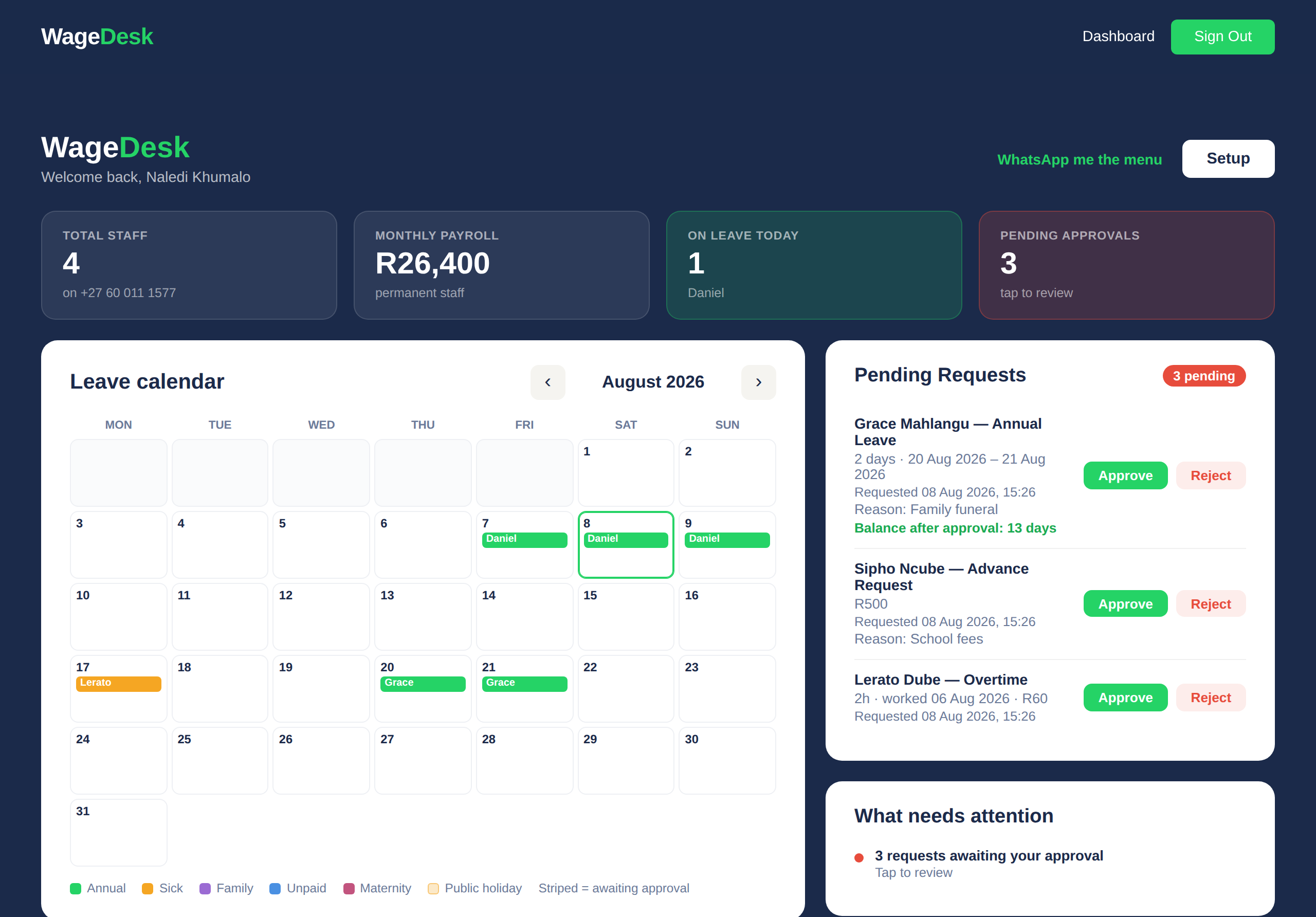
Your staff never leave WhatsApp. You get a proper control room in the browser: every person, every balance, and everything waiting on you — without opening a spreadsheet.
1234
1
Your whole team at a glance
How many staff, what payroll costs you this month, who is off today, and how much is waiting for you. Two people or twenty.
2
Everyone's leave in one calendar
The whole month, colour-coded by leave type, with half days and South African public holidays already worked out.
3
Approve without chasing anyone
Leave, salary advances and overtime arrive here and on your WhatsApp. One click each, and your staff member is told automatically.
4
It tells you what still needs doing
Approvals outstanding, anyone not connected yet, and what is missing before month-end. You do not have to go looking.
Further down the same page: every payslip, your UIF declaration files, SARS and COIDA returns, and downloadable Excel statements for any staff member.
Proper PDF payslips generated and sent every month-end, with everything the law requires on them. PAYE and UIF calculated for you.
Leave tracking
Annual, sick, family responsibility and unpaid leave with SA public holidays built in. Balances always up to date.
Advances & repayments
Record salary advances you give your staff, track balances, log repayments. Both sides see the same number. No more disputes. WageDesk does not lend money — advances come from you, the employer.
Overtime
Staff log hours, you approve with a tap. Pay it out or settle an advance with it — your choice.
Casual day tracking
For staff who work ad-hoc days — they log, you confirm, the payslip is right at month-end.
Web dashboard
Full picture in your browser: staff, balances, pending requests, downloadable Excel statements.
Customise per worker
Switch Leave, Advances, Overtime or Payslips on or off — a default for everyone, overrides per worker.
Flexible leave
Give the full year upfront or let leave accrue monthly — we work out the balance automatically.
Make it yours
Your business, your rules.
WageDesk is full of simple switches — set it up once and it works the way you already run things.
New
Extra leave day for public holidays
Salaried staff who work a public holiday can ask for an extra leave day instead of pay. You approve it on WhatsApp and the balance updates — and whether unused days carry over at year-end is your switch.
Features per employee
Leave, Advances, Overtime and Payslips each switch on or off — for the whole company or just one person. Run WageDesk for leave only if that's all you need.
Leave, allocated your way
Give the full year's leave upfront, or let it build up monthly as staff earn it. Balances work themselves out either way.
Shopping & To-Do lists
An opt-in extra for households: staff flag what has run out, you add what needs doing — one shared list on WhatsApp.
Free tool
Overtime & Sunday rate calculator
Enter a normal hourly rate and see the legal overtime, Sunday and public-holiday rates instantly.
R/ hour
Normal
standard rate
R30.23
per hour
Overtime
1.5× time-and-a-half
R45.35
per hour
Sunday / holiday
2× double
R60.46
per hour
Overtime is paid at 1.5× the normal wage. Work on a Sunday the employee doesn't normally work, or on a public holiday, is 2×. There is also a weekly limit on overtime, and it differs for household staff — the detail is on our legal page.This is a guide, not legal advice — confirm specifics with a labour expert.
Compliance
The legal stuff, handled.
South African employment law applies to households and small employers too. WageDesk keeps you on the right side of it without reading a single act.
Proper payslips
Every payslip carries what the law requires — hours, rate, overtime, deductions, UIF, the lot.
POPIA consent
Workers consent in chat before any data is processed. Recorded, timestamped, revocable.
SARS tax tables
PAYE calculated on the latest SARS tables, updated when SARS updates.
UIF calculations
1% + 1% calculated on every payslip, with your reference number shown.
Minimum wage guard
We check salaries against the national minimum wage and flag anything below it.
Audit trail
Every approval, change and payment is logged. If there's ever a dispute, the record is there.
Who it's for
Built for every South African employer.
Households
Housekeepers, nannies, gardeners or drivers.
Small businesses
Salons, shops and restaurants managing small teams.
Property managers
Building staff and security across properties.
Multi-employer workers
Workers with several employers — data stays separate.
We tailor a personal monthly quote for bigger teams — one bill for all your companies, every feature included. Still starts with a 30-day free trial, and you always see your price before any charge.
Just WhatsApp — which they almost certainly already have. Nothing to download, nothing to learn.
Yes. Data is processed under POPIA with explicit consent from every worker, stored securely, and never sold. You and your staff can request a full export or deletion at any time.
Update the number on your dashboard and the chat moves with it — history intact.
Absolutely. WageDesk works for any small employer — household help, gardens, shops, farms, small offices. Plans cover up to 20 staff, and bigger teams get a personal quote.
Every account starts with a 30-day free trial. After that: R69/month for up to 3 staff. From your 4th worker you add R23 per worker, and the price never goes above R199/month for up to 10 staff. From your 11th worker you add R20 per worker, capped at R349/month for up to 20 staff. Every plan includes all features for all your staff. Bigger teams get a personal quote.
You are billed on the 1st of each month for the month ahead. Your monthly amount is set on that day, based on the staff on your account. Adding staff never triggers an extra charge during the month — the new price simply applies from your next payment. Removing staff brings your next payment down the same way. The one exception is your very first payment: since your trial can end mid-month, that one is a part-month amount that lines you up with the 1st.
Anytime, no questions, no lock-in. Your data export is one click before you go.
Be the employer people want to work for.
Set up takes two minutes. Your staff will thank you on payday.
Add your workers now or skip and invite them later via WhatsApp.
Workers Added!
Tap the buttons below to invite each worker to WhatsApp.
Written contract required
The law requires you to give every worker written particulars of employment on or before their first day. Use our sample as a starting point, then complete and sign it together.
Login
Access your account
Login Successful!
Loading your dashboard...
Forgot Password
Enter your email and we will send you a reset link
Email Sent!
Check your inbox for the reset link. It expires in 1 hour.
Tap a day to set the shift. For staff ticked "Rostered staff" on their profile, their days off come from this roster: leave is counted on rostered days only. For everyone else the roster is for planning and changes nothing.
Grey = from their own pattern, or your usual week in Roster settings. Bold = set for this week. Week shows rostered hours (after lunch) plus leave against the hours in their contract.
Your Staff
Pending Requests
Shopping & To-Do
Slips
What needs attention
Billing
Default features
The starting point for everyone. Set per-employee overrides on each worker's profile.
▼
Leave allocation
How annual leave is given to your staff.
Extra leave days
For staff who work on a public holiday.
Dates staff can't take leave
Your busy periods - a shutdown, a season, a big job. Staff can't request annual, unpaid or compassionate leave on these dates. Sick leave and family responsibility leave always go through, and you can still record leave yourself.
Time tracking (hourly staff)
Let staff log the hours they actually work, and approve them. Approved hours drive their payslip. Turn it on per employee under each worker's record.
Setup checklist
What you need to get going — this ticks off as you go.
Pay frequency
How often you run payroll. Salaries are worked out per period automatically.
Deductions & compliance
What WageDesk deducts, reminds you about and sends you at month-end. All on by default.
Deduction consent
Ask staff to confirm their deductions before payday. When on, each worker with deductions gets one WhatsApp on your cutoff day listing them, with Accept or Query. No reply by payday counts as accepted; a Query holds that person's deductions and flags you.
Overtime pay
How overtime is priced when staff log it.
Staff request notifications
Your manager(s) receive and handle your staff's requests. Switch on any type you'd also like to receive yourself. You can always see and act on everything from your dashboard.
SARS reminders on WhatsApp
Off by default. Switch this on and WageDesk sends you a WhatsApp on the 5th with what is owed to SARS for the month that ended, and one more on the due date if you have not marked it paid. Your dashboard shows the same figures and deadline either way.
Your accountant or bookkeeper
Invite the person who looks after your books. They get their own login at wagedesk.co.za/accountant and can see your payroll, bank details and ID numbers, download the payment list, payslip pack and SARS returns, and add commission, extra payslip lines and overtime for the month. They cannot issue payslips, change your staff or settings, or see your billing. You can withdraw their access at any time, and everything they do is recorded under their name.
Leave year reset on WhatsApp
Off by default. When someone's leave year rolls over, you are always emailed a summary. Switch this on to also get a WhatsApp for each person.
Roster rules
Your usual rostering rules. The shift roster is checked against them, and staff ticked "Rostered staff" on their profile have their days off taken from the roster. You can change these whenever you need to.
Lock payslip PDFs with a password
Off by default. Switch this on and the payslip PDF each employee receives on WhatsApp is locked - they open it with their own ID number. Your own downloads, the payslip pack and the payroll report are never locked. The payslip prints the ID number on it, so this stops someone glancing at a payslip on a shared phone - it is not encryption of the figures.
Household or business?
Tell us which you are, once. A business may repay an advance up to the full wage the employee has earned. A household keeps the tenth-of-wage limit. You can change the limit for your account in Advances at any time.
Industry
Pick your industry — WageDesk applies the right rules and shows only what fits. If a bargaining council covers your staff, pick it here and its rates go onto their payslips.
Compliance
▼
Employment Tax Incentive
This reduces what you pay SARS. It does not change anybody\'s pay. WageDesk cannot see whether someone is a domestic worker or a connected person, whether their ID type qualifies, or how many ETI months you or an associated company have already claimed - an unrelated previous employer\'s months do not count - so nothing is claimed until you tick Include in ETI claim on that employee, and it is worth checking with whoever does your returns first.
Payslips going out
Staff who are not set up for a payslip yet
Each person below is missing something a payslip needs. Fix it on their profile before payday.
Payroll for the month
Every employee's pay, deductions and take-home in one place. Opening this changes nothing.
These are the same figures your payslips print. The payment list is what you import into your bank; the breakdown is the table below, with every deduction in its own column. "All payslips to check" are marked as previews - use them for review, then "All payslips, final" once you are happy. WageDesk never moves wage money: the payment list is a file you import into your own bank.
Commission, tips and extras
Add commission, tips and any extra earnings or deductions to a month's payslips. Pick the month, then upload - it can be next month's as well.
Upload the report from your salon or till system (Zenoti works now) or our filled-in sheet. You'll see every change before anything is added. Uploading again for the same month replaces what your last upload added; lines you typed on a payslip yourself are left alone. Using another system? Email a report to info@wagedesk.co.za and we'll add it.
UIF Submission
Register for UIF in 4 steps
Create a free account at ufiling.labour.gov.za, then open Registrations > Register. A business registers as a Commercial Employer and picks its ownership type (company, sole owner, partnership, close corporation or trust); a household registers as a Domestic Employer using an ID number. You can also register at your nearest Labour Centre. If the company already has a UIF reference number, use Registrations > Add instead and the owner or director approves it by email.
Add the UIF reference number they issue to your profile (Edit details) so we can fill it into your declarations.
Each month, download the spreadsheet above and upload it at uFiling: Declarations Manager > Bulk Upload (choose "SA Citizens Only").
Pay the 2% contribution (1% you + 1% worker) via uFiling or your bank by the 7th of the following month - what you deduct in August is due by 7 September.
WageDesk generates the file from your worker details. We do not submit on your behalf or handle the payment in this version.
Overtime booked this month
Overtime you have booked for days still to come. It is already on this month's payslip, and it is recorded automatically on the day.
Payslip queries
Staff who think something on their payslip is not right, in their own words. Answering marks it done and tells them. It does not change the payslip - use Recalculate for that.
Hours
Everyone's clock in and clock out for the week. Tap a waiting day to approve it, or approve the whole week at once.
Timesheet - all staff
Everyone's hours for the period on one page, with a total. For one person's day-by-day clock in and clock out times, open their profile.
SARS & COIDA returns
EMP201 monthly summary, EMP501 reconciliation with the IRP5/IT3(a) capture sheet, and the COIDA Return of Earnings.
The three returns, in plain language
EMP201 - a monthly summary of PAYE deducted, UIF (1% you + 1% worker) and SDL, to declare and pay on SARS eFiling by the 7th of the following month. If no PAYE is deducted (staff below the tax threshold) and you are not SDL-liable, your UIF declaration usually covers you - this PDF proves it either way.
EMP501 - the twice-a-year reconciliation of those monthly amounts (interim due 31 October, annual due 31 May). The pack includes a per-employee totals sheet with the SARS source codes so you (or your accountant) can capture IRP5/IT3(a) certificates in SARS e@syFile. Official certificates are issued by SARS - this is the capture sheet.
COIDA Return of Earnings - the yearly earnings declaration (W.As.8) to the Compensation Fund at CompEasy, due after each Feb year-end. Household and small employers are in scope. You must be registered with the Fund first.
PDF or Excel? The PDF is your record copy. The Excel is the same figures with live totals, so you or your accountant can delete a row and have the totals follow - useful when your bookkeeper files something differently to how we work it out. Delete the whole ROW, not just the cells. Editing the file never changes anything in WageDesk.
SDL applies to employers registered for it; a salary bill over R500,000 a year makes you liable to register. Tell WageDesk under Setup whether you are registered - the EMP201 PDF works this out and says which case applies to you. WageDesk generates the figures from the same engine as your payslips; it does not submit or pay on your behalf, and it is a tool, not a tax advisor.
What this month costs you
Wages plus the contributions you pay on top.
Your staff pay their own PAYE and 1% UIF out of the wage above - those are not counted twice here.
The second 1% UIF is yours, on top. COIDA is assessed once a year, not monthly, so it is not in this total.
Leave
Shift
Day
Send roster
Sends the month's roster (the same page as Print this month) on WhatsApp as a download link. Everyone sees the whole month, as on the wall. Leave shows as "Leave", never the type. If the roster changes, send it again.
Roster settings
Your usual rostering rules. The roster is checked against them and anything outside them is pointed out, but you can always roster a day differently. Put 0 to switch a check off.
Shift pattern
Their usual week, or a cycle that repeats (for example 4 days on, 2 off). The weekly roster can still change any single day.
Add reminder
You get a WhatsApp reminder at 8am on the day. It shows on your leave calendar until you mark it done.
Co-admins
Co-admins share full access to your account (except billing). They get WhatsApp approval requests and can log into the dashboard. Each co-admin gets an email to set their own password. Maximum 5.
Add co-admin
My Profile
Update your contact details and the compliance fields that appear on every payslip.
Your details
Compliance details
Pick 1 to 28 so the pay day exists in every month, or the first option for the end of the month.
WageDesk
Setup & settings
Two-factor sign-in
Checking...
WageDesk
All companies
Loading...
Loading...
How it works
Short clips of WageDesk in use - on WhatsApp and on the dashboard. Pick who you are, or pick a topic. Forward the employee ones straight to your team.
No videos for that combination yet - try a different topic.
Would you rather click than watch?
Try the dashboard for yourself. Pick a task and it walks you through it, step by step, on sample data.
Step-by-step: how your staff apply for leave, salary advances and overtime on WhatsApp, and how you approve each one.
Apply for leave ▼
Type Menu to open your menu.
Choose 1 (Leave).
Choose 1 (Apply for Leave). WageDesk sends you a form.
Tap Apply for Leave to open the form.
Pick your leave type (annual, sick, family responsibility or unpaid) and your start and end dates on the calendar. Choose Full day or Half day (a half day must be a single day). Add a reason if you like.
Tap Send to Employer.
Your employer is notified. You get a WhatsApp reply when it is approved or declined.
Amina - Leave
Annual: 15 days left | Sick: 30 days left | Family: 3 days left
1. Apply for Leave
2. View Leave Summary
3. Pending
4. Extra Leave Day (worked a public holiday)
0. Back
1
Hi Amina, ready to apply for leave with Sarah? Tap below to open the form and pick your dates.
[ Apply for Leave ]
Amina - Apply for Leave
I've just sent you a form. Tap it to pick your leave type and dates from a calendar - much easier than typing.
If you don't see the form, type menu and try again.
Apply for leave
Form sent: Annual, 02 Jun to 05 Jun
Leave Request Sent!
Type: Annual Leave
Period: 02 Jun 2026 to 05 Jun 2026 (4 working days)
Your employer will be notified.
You'll get a message when it's approved.
Ask for a salary advance ▼
Type Menu to open your menu.
Choose 3 (Salary Advance).
Choose 2 to request an advance (you can also check your balance or history here).
Pick an amount, or choose Other and type your own.
Check the details and type 1 to submit.
Your employer is notified and you get a message when it is approved.
Amina - Overtime
Available: R0
1. Log Overtime
2. View Total
3. Use Overtime to Repay Advance
4. Pending
0. Back
1
Hi Amina, here is the overtime form for Sarah. Open it and pick how long you worked.
[ Log Overtime ]
Amina - Log Overtime
I've just sent you a form. Tap it to pick the hours and minutes you worked - much easier than typing.
If you don't see the form, type menu and try again.
Log overtime
Form sent: 14 Jul, 1h 30min
Overtime Request Sent!
Duration: 1h 30min
Day worked: 14 Jul 2026
Value: R45
Your employer will be notified.
You'll get a message when it's approved.
Type HELP anytime in WhatsApp to see all commands.
Requests reach you two ways: on WhatsApp (you also get a daily 09:00 reminder of anything pending), and in your web dashboard under "Pending Requests".
Approve or reject leave ▼
Type Menu to open your menu.
Choose 1 (Pending Requests).
Choose 3 (Leave Requests).
Pick the request from the list.
Check the details and balance, then type 1 to approve (or 2 to reject).
The worker is notified automatically. On the web: Dashboard → Pending Requests → Approve / Reject.
Free calculator for South African employers and workers. Enter a normal hourly rate and instantly see the legal overtime rate (1.5x), Sunday rate and public-holiday rate, based on the Basic Conditions of Employment Act (BCEA).
R/ hour
Normal
standard rate
R250.00
per hour
Overtime
1.5x (time-and-a-half)
R375.00
per hour
Sunday / Public holiday
2x (double)
R500.00
per hour
1x
Normal
1.5x
Overtime
2x
Sunday / PH
How the rates work: Overtime is paid at 1.5x the normal wage. Work on a Sunday the employee does not normally work, or on a public holiday, is paid at 2x. If they do normally work Sundays, Sunday work is 1.5x. There is also a weekly ceiling on overtime, on top of a maximum 45 ordinary hours — 15 hours a week for household staff, 10 for everyone else.
This is a guide, not legal advice. Confirm specifics with a labour expert or the Department of Employment and Labour.
Manage overtime automatically with WageDesk
Your staff log overtime on WhatsApp, you approve it in one tap, and it flows straight onto a proper payslip with UIF and PAYE worked out for you. No spreadsheets.
Overtime pay in South Africa — quick answers
What is the overtime rate in South Africa?
Overtime is paid at 1.5x (time-and-a-half) the worker's normal hourly wage, and it is by agreement — you cannot simply put someone on the roster for it. There is a weekly ceiling on top of a maximum 45 ordinary hours: 15 overtime hours a week for household staff, 10 for everyone else.
What is the Sunday and public-holiday rate?
Work on a Sunday the worker does not normally work, or on a public holiday, is paid at 2x (double) the normal rate. If the worker normally works Sundays, Sunday work is paid at 1.5x.
How do I work out an hourly rate from a monthly salary?
Divide the monthly salary by the ordinary hours worked in the month — for a 45-hour week that is roughly 195 hours. Enter that hourly figure in the calculator above.
Legal & Compliance
Last updated: June 2026
Important: please read this first
WageDesk is a record-keeping and communication tool. It is not a law firm, payroll bureau, or labour consultant. Nothing on this site is legal, tax, or HR advice.
The information below is provided in good faith to point you towards official sources. South African labour and tax law changes regularly. You — the employer — are solely responsible for confirming current requirements and complying with them.
If you are unsure about anything, contact a registered labour consultant, the Department of Employment and Labour, the CCMA, or SARS directly.
Which rules apply to you
It depends on whether the person works in your private home.
Household staff — a housekeeper, nanny, gardener, driver or carer working in a private home — are covered by Sectoral Determination 7, the domestic worker sector determination. Where it covers something, it applies instead of the general Basic Conditions of Employment Act.
Everyone else — staff in a shop, workshop, office, restaurant or on a site — falls under the Basic Conditions of Employment Act, plus any bargaining council covering that industry.
Most of the answers below are the same either way. Where they are not, we say so.
Your responsibilities as an employer
When you hire someone in South Africa, the law expects you to do at least the following. WageDesk helps with the record-keeping side, but the legal obligations sit with you:
Provide written particulars of employment on or before the first day of work.
Pay at least the National Minimum Wage for every hour worked.
Register with the UIF and submit monthly contributions (UIF Act).
If anyone you employ earns above the SARS tax threshold, register for PAYE with SARS and submit EMP201 / EMP501 / IRP5 returns. A salary bill over R500 000 a year also makes you liable to register for SDL.
Issue a payslip every pay day, showing their details and yours, the pay period, their rate, the hours worked, any overtime, Sunday and public holiday hours, deductions, and what they actually received. No particular format is required — handwritten counts.
Keep a copy of every payslip for three years, along with records of hours, leave and deductions.
Follow a fair process before issuing warnings or dismissing a worker (LRA Schedule 8).
Protect your worker's personal information under POPIA — only use it for the employment relationship and keep it secure.
A household owes a payslip no matter how few staff it has. The exemption you may have heard of, for employers with fewer than five employees, is a business exemption and does not reach domestic workers.
Where the answers differ
These are the places where household staff and other staff are genuinely treated differently. If you employ both, check which one you are looking at.
Notice periods
Household staff: one week's notice if they have worked six months or less, and four weeks after that. There is no two-week middle band.
Other staff: one week under six months, two weeks from six months to a year, four weeks after a year.
How much overtime is allowed
Household staff: up to 15 overtime hours a week.
Other staff: up to 10 overtime hours a week.
The rate is the same for both: 1.5× normally, 2× on a Sunday they do not ordinarily work or on a public holiday.
Deductions from wages
Household staff: only certain deductions are allowed at all, and repayment of an advance you gave them may not exceed a tenth of the wage due on that payday. Their agreement does not raise that ceiling.
Other staff: deductions generally require the worker's written consent, within limits.
Breakages and losses: for household staff these may not be deducted at all — not with consent, not with a signature.
Official resources
Direct links to the regulators, acts, and government services. Always check these for the latest information:
Plain-English answers to the most common questions employers ask us. These are general explanations only — see the official sources above for the legal text.
Does WageDesk give me legal advice?
No. WageDesk is a software tool for keeping records, calculating UIF and PAYE, and sending payslips. We are not lawyers, accountants, or labour consultants. If you are unsure, please consult a registered professional or contact the Department of Employment and Labour, CCMA, or SARS.
Do I need a written contract of employment?
Yes. Every employer must give written particulars of employment on or before the first day of work. We provide a sample below as a starting point — you must complete and sign it with your staff member.
What is the current National Minimum Wage?
The NMW is set by the Department of Employment and Labour and is adjusted annually (usually 1 March). Domestic workers are at parity with the general NMW since 1 March 2022. Always check the latest amount on the NMW Act gazette before setting a wage. WageDesk does not enforce a minimum — you must verify.
Do I have to register with UIF?
Yes, in almost all cases. If you employ someone for more than 24 hours per month, you must register as an employer with UIF and submit monthly declarations and contributions (1% employer + 1% employee). Use uFiling to register. WageDesk calculates the contribution but does not submit it for you.
Do I have to register for PAYE?
Only if your total payroll is high enough to trigger PAYE liability (broadly: any single worker earning above the tax threshold, which is R99 000 a year for someone under 65 in the 2026/27 tax year). Domestic employers with one worker earning below the threshold typically do not need PAYE. Check with SARS or your accountant.
How much annual leave must I give?
A worker is entitled to at least 21 consecutive days (15 working days) of paid annual leave per 12-month leave cycle. WageDesk defaults to 15 working days per year. You can give more, but not less.
How much sick leave?
Paid sick leave equal to the days they would normally work in a six-week period, over a 36-month cycle. For someone working 5 days a week that is 30 days every 3 years; someone working 6 days a week is entitled to more. In the first 6 months, sick leave accrues at 1 day per 26 days worked. WageDesk's default is a flat 30 days — adjust it per person if their week is longer.
What must appear on a payslip?
Your name and address, their name and what they do, the pay period, their rate of pay, the ordinary hours worked, the overtime hours, any Sunday or public holiday hours, their wage, any other pay, every deduction, and what they actually received. No particular format is required, so a handwritten slip counts. WageDesk fills these in for you — just make sure your address and UIF reference are entered correctly under Setup.
Can I deduct a salary advance from a worker's wages?
Yes, but there is a ceiling. For household staff, repayment of an advance may not take more than a tenth of the wage due on that payday. That is a limit, not a guideline, and their agreement does not raise it. For other staff, deductions generally need written consent and stay within limits. WageDesk records the agreement on WhatsApp as an audit trail, warns you at the tenth, and holds scheduled repayments to it by default. Note that WageDesk never lends money or holds wages — an advance is between you and your staff member; we keep the record, and you remain responsible for fairness.
What is the notice period for termination?
It depends who they are. For household staff it is one week if they have worked six months or less, and four weeks after that — there is no two-week middle band. For other staff it is one week under six months, two weeks from six months to a year, and four weeks after a year. Notice must be given in writing either way.
What if I want to dismiss a worker?
Dismissal must be for a fair reason (misconduct, incapacity, or operational requirements) and follow a fair procedure (LRA Schedule 8). For misconduct, this typically means a warning, an investigation, and a disciplinary hearing where the worker can respond. Dismissing unfairly can lead to a CCMA case with compensation of up to 12 months' pay. Get advice before you dismiss.
What does the CCMA do?
The CCMA hears disputes about unfair dismissal, unfair labour practice, wage underpayment, and discrimination. A worker has 30 days from dismissal to refer a case. The first stage is conciliation (free, informal). If unresolved, the case goes to arbitration. Keeping good records on WageDesk helps your defence — but you still need to follow a fair process.
What does POPIA mean for me as a small employer?
You collect personal information about your workers (name, ID, phone, salary). POPIA says you must use it only for the employment relationship, keep it secure, and delete it when you no longer need it. You must also register an Information Officer with the Information Regulator (by default this is you, the employer). WageDesk stores data securely on your behalf, but you are still the "responsible party" under the Act.
How long must I keep employment records?
At least three years — records of hours worked, wages paid, leave taken and deductions, and a copy of every payslip. Not just the most recent one, three years of them. WageDesk keeps these for as long as your account is active, and the exit pack emails you the full set if you remove someone.
Sample payslip
Want to see what your staff will receive each month before you sign up? Below is a sample of the BCEA section 33 payslip WageDesk generates — employer letterhead, earnings, deductions (PAYE and UIF), net pay and leave balances. Sample figures only.
Opens in a new tab. Print it or save as a PDF from your browser's print dialog.
Sample employment contract
Below is a basic written-particulars-of-employment template that meets the minimum BCEA section 29 requirements. This is a sample only — it does not cover every situation and is not a substitute for legal advice. Adapt it to your situation, complete the blanks, sign two copies, and keep one with your records.
Click the button to open the contract in a new tab. From there you can print it or save it as a PDF using your browser's print dialog.
Billing, refunds and cancellation
Pricing
WageDesk is priced per worker on the number of staff on your account, after a 30-day free trial: R69 per month for up to 3 staff; from the 4th worker, R23 per additional worker per month, with the total capped at R199 per month for up to 10 staff; from the 11th worker, R20 per additional worker per month, capped at R349 per month for up to 20 staff. Above 20 staff, each additional worker is R17 per month unless we have agreed a personal quote with you (info@wagedesk.co.za). Your price follows your current staff count — it adjusts automatically when your headcount changes, and the current amount is always shown on your dashboard Billing card and in the WhatsApp Billing menu before any charge. Billing runs on calendar months. Every account is charged on the 1st for the month ahead. Because your free trial can end on any day, your first payment is a once-off part-month amount covering only the days from the end of your trial to the end of that month, which puts you on the 1st from then on; if only a few days remain, we do not charge for them at all. After that, your monthly amount is set on the 1st based on the staff on your account that day: adding staff never triggers an extra charge during the month — the new price simply applies from your next payment — and removing staff brings your next payment down the same way. Apart from that one alignment payment, there are no part-month charges, pro-rata adjustments or refunds. If you run more than one company under one WageDesk login, you receive a single monthly bill priced on your total staff across all of your companies — adding a company never starts a separate subscription. There are no cancellation fees, and every plan includes all features for all your staff. Setting your account up yourself is free. If you already run payroll elsewhere and would like us to move it across for you, assisted onboarding is quoted up front on the size of the job and is often waived; manager training is always free.
How payment works
Payments are processed by Paystack, a PCI DSS certified payment provider licensed in South Africa. You add a card once during your trial; a small R2 verification charge is made, and that R2 is taken off your first payment. Your subscription is then collected from that card each month. Your card number is entered on Paystack's secure page and is never stored on WageDesk's servers — we keep only a payment token, the card brand, the last four digits and the expiry date so you can recognise your card.
How to cancel
You can stop your subscription at any time, no notice period and no penalty: remove your card on the dashboard (Billing card, Remove), or contact us at info@wagedesk.co.za or on WhatsApp and we will cancel it for you. No further charges will be made, and your account stays active until the end of the period you have already paid for. Your records remain available for export before the account closes.
Refunds
The monthly fee is charged at the start of each billing month and is not pro-rated if you cancel mid-month. If you believe you were charged in error — for example a charge after you cancelled — contact info@wagedesk.co.za within 30 days and we will investigate and refund any incorrect charge in full to the same card.
Privacy policy and POPIA
Who we are
WageDesk is a WhatsApp-based staff management platform for South African employers, operated by WAGEDESK (Pty) Ltd, registration 2026/322775/07. For your own account details, WageDesk is the responsible party. For the information you enter about your staff, you as the employer are the responsible party, and WageDesk processes it on your instructions as your operator. Contact: info@wagedesk.co.za.
Our Information Officer is Wayne Gevers, registered with the Information Regulator of South Africa under registration number 2026-063883. Requests about your personal information — access, correction, deletion or an objection — go to the Information Officer at info@wagedesk.co.za.
What we collect
Employer information: name, email, phone, address, industry, ID number (optional, for the UIF declaration), password (stored as a hash), the two-factor sign-in key if you switch two-factor on, and any default payslip password you set. Worker information entered by the employer: name, phone, role, salary, date of birth, ID number, start date, days off, bank details, passport number and nationality where there is no SA ID, any payslip password you set for them, and physical and postal address (both optional, for payroll and the UIF declaration), and the records the system generates (leave, salary advances, overtime, hours and days worked, absences, conduct reports and the employee's own reply to them, payslip queries, payslips, audit log).
If you contact us from an advert or use the payroll check without registering, we keep your name, number, email, company and the answers you give us, so that we can reply to you. If we refuse service to a phone number, WhatsApp account or email address to prevent fraud, we keep that identifier and the reason.
If your employer uses WageDesk's clock-in and has location switched on, you are asked to share your location when you clock in, and on some accounts again when you clock out. You can do it with a one-time WageDesk link that reads your phone's location in the browser, or by sharing your WhatsApp location, and you may add a line about where you are. We store each reported location on that day's time record so your employer can see where the shift started and ended. We never track your location between clock-in and clock-out, the link reads it once and stops, and the record is kept and erased with the rest of your employment record.
If you or your staff send WageDesk a photo or PDF of a receipt or slip on WhatsApp, we keep that file, and any line typed with it, on your company's record under the sender's name, so that you can decide what to do with it. It is stored with the rest of your company's data and shown only to your company's dashboard logins. WageDesk does not read anything off the image, and nothing on a payslip changes because of it.
If a member of staff sends a photo or PDF of a medical certificate after applying for sick leave, or you attach one on the dashboard, we keep it with that sick leave request. A medical certificate is health information, so it is kept apart from slips, shown only to your company's dashboard logins who can see that person, never sent to any outside service, and erased with the rest of that person's record.
If you upload a member of staff's employment contract, we keep the PDF on their profile, shown only to your company's dashboard logins who can see that person. If you send it to them, they get a download link on WhatsApp and we record when it was sent. It is erased with the rest of that person's record.
If you invite your accountant or bookkeeper to look after your books, we keep their name, email address and a hashed password, and a record of which companies have given them access. Only you can invite them, and you can withdraw access at any time from the dashboard; it stops at once. While they have access they can see your company's payroll, including your staff's bank details and ID numbers, and download your payroll reports, payslip previews and SARS and UIF files. They can add commission, one-off payslip lines and overtime, but they cannot issue or send payslips, change your staff, settings or billing. Everything they do is recorded in your activity log under their name. Their sign-in always requires two-factor authentication (a code from an authenticator app), and they cannot switch it off. Giving them access is your instruction to us, as the responsible party for your staff's information. We email them a monthly summary of where your SARS pay-over stands, unless they switch that off.
WhatsApp also gives us an account identifier for each person who messages us, alongside their phone number. We store it so that we can still recognise your account if you choose a WhatsApp username and hide your number. It identifies you to WageDesk only, it is not your phone number, and it cannot be used by anyone else to contact you. It is erased with the rest of your information.
Why we collect it
To provide the WageDesk service — to let employers manage leave, salary advances, overtime, and payslips for their workers via WhatsApp, and to calculate UIF and PAYE.
Messages we send you
WageDesk runs on WhatsApp, so we message you there at the number on your account. These are messages about your own account: a welcome when you register, requests your staff send you to approve, reminders about approvals still waiting, payslip and UIF notices, and billing notices. We only message people who have messaged us first, and only about the account or enquiry they messaged about, and we never give your number to anyone else. To stop them, block WageDesk in WhatsApp, or email info@wagedesk.co.za and we will close your account. Some notices can also be switched off individually on your dashboard.
How we protect it
Data is stored on a secured server hosted by Hetzner in Germany, with HTTPS/SSL in transit. Access is restricted to the WageDesk system and a small number of authorised administrators. Off-site backups are encrypted (AES-256) before they leave the server, so a backup copy is unreadable without a key held separately from the data. Payslip and document links are individually signed, so they cannot be reached by guessing a filename. We do not sell personal information to third parties.
How long we keep it
We keep personal information only as long as we need it, and an automated job deletes it when that period ends. Staff records — leave, advances, overtime, payslips — stay for as long as the staff member is on your account, and for three years after you remove them, because that is the period the Basic Conditions of Employment Act requires employment records to be kept. After those three years the record is erased. WhatsApp message history is kept for two years, support questions for two years, payment records and the audit trail for five years, anonymous website statistics for one year, and the web server's access log for 90 days.
If we ask an account holder to confirm who runs their company, the copy of their ID and the company's CIPC certificate they email to us are used only for that check and deleted within 30 days of finishing it. They are never stored in WageDesk itself.
Slip and receipt photos have no separate window: they stay for as long as your account and the staff member who sent them do, and are removed with them.
If your account is closed, we first produce a complete record of it — every employee's employment record and the company's own account data — and keep one encrypted copy of that file for three years, for the same reason: the Basic Conditions of Employment Act requires those employment records to be kept for three years after a person leaves. You can ask us for a copy of that record at any time during those three years and we will send it to you. After three years the file is deleted automatically.
When you remove a staff member from your account they are archived, not deleted: they come off your active list and you stop being billed for them, but their payslips and leave history stay available to you, and past UIF and SARS submissions still reflect the months they worked. You or your staff member may request full erasure at any time and we will action it within 30 days, unless a record-keeping obligation under the BCEA, the Income Tax Act or the UIF Act requires us to hold the record longer — in which case we will tell you which one, and erase it when that obligation ends.
Your rights under POPIA
You have the right to access, correct, delete, and object to processing of your personal information. To exercise any of these rights, or to lodge a complaint, contact our Information Officer at info@wagedesk.co.za. We will respond within 30 days. If you are not satisfied with our response, you may lodge a complaint with the Information Regulator of South Africa — complaints go to their eServices portal or to complaints.IR@inforegulator.org.za.
Cross-border transfer
Some of the services WageDesk runs on sit outside South Africa, so some information is processed abroad. These are all of them, and what each one handles:
Hetzner, Germany - hosting. The database and every record in it are stored in Germany, which has data-protection law (GDPR) providing protection substantially similar to POPIA.
Twilio, United States - delivery of WhatsApp messages, so the content of those messages and the numbers they go to.
Meta Platforms, United States and Ireland - operates WhatsApp, over which the service is delivered.
Google, United States and the European Union - email delivery, and the off-site backup, which is encrypted before it leaves the server.
Paystack, South Africa - card payments. Paystack is a South African company and may process payment data outside the Republic.
GitHub, United States - holds the source code and the deployment pipeline. It receives no customer information, and is named here because it has access to the infrastructure.
Anthropic, United States - reads the place, the amount, the VAT and a category off every receipt sent to the slip register (the image of that slip). Two further features would send information there if they were switched on: the in-dashboard help feature (the question you ask) and the setup feature that reads an uploaded staff list (the file you upload). Neither is switched on, and nothing from them is sent there today.
By using WageDesk you consent to these transfers. The same list, in the form the Promotion of Access to Information Act requires, is in our PAIA manual.
Payments
Subscription payments are processed by Paystack South Africa Proprietary Limited, a licensed third-party payment provider. When you add a card, your card details are sent directly from your browser to Paystack and never touch WageDesk's servers; WageDesk stores only a payment token, the card brand, the last four digits and the expiry date so we can show you which card is on file. Paystack processes your name, email address and payment information to complete transactions, and may process this data outside South Africa in accordance with POPIA. See Paystack's privacy policy for details.
Analytics and advertising measurement
Our public website may use the Meta Pixel (Facebook/Instagram) to measure how visitors find us and whether our advertising works — for example, counting page views and completed registrations. This involves cookies and standard browser information sent to Meta Platforms. It applies to the public website only, never to your staff records or WhatsApp conversations. You can limit this with your browser's cookie settings or an ad blocker, and Meta's own controls are at facebook.com/adpreferences.
We also keep our own basic, privacy-preserving website statistics — how many people visit each public page, roughly which device they use (phone or computer), an approximate country, and whether they tried the demo or calculator. This uses no cookies and no third-party analytics service. These statistics do not store your IP address: it is used only momentarily, on our own server, to work out an approximate country and to generate a one-way, irreversible code that lets us count unique visits without identifying anyone, and is then discarded. Our web server keeps its own separate record of each request, described below, and that one does hold an IP address. These statistics apply to the public website only, never to your staff records or WhatsApp conversations.
Web server logs
Separately from the statistics above, the web server that serves this site keeps a standard access log. Every request to the site or the dashboard adds one line to it, recording the network (IP) address the request came from, the date and time, the page or file requested, whether it succeeded, the page you came from, and which browser and device you used. This is an ordinary technical record kept to diagnose faults and to investigate a security incident, and it is not used for analytics, profiling or advertising. It is kept for 90 days and then deleted automatically.
Terms of use
By using WageDesk you agree that:
You are the employer (or an authorised representative) and have the right to enter your workers' personal information.
WageDesk is provided "as is" without warranty. We do our best but we do not guarantee uninterrupted service or that every calculation matches your specific situation.
You remain responsible for compliance with all applicable laws — BCEA, LRA, UIF Act, Income Tax Act, POPIA, National Minimum Wage Act, and any Sectoral Determination that applies to your sector.
WageDesk is not liable for any fines, claims, awards, or losses arising from non-compliance, incorrect data entry, or your decisions as an employer.
WageDesk messages you on WhatsApp at the number you register — a welcome, your staff's requests, approval reminders, payslip and UIF notices, and billing notices. That is how the service works. We only message people who have messaged us first, and only about the account or enquiry they messaged about. You can stop the messages by blocking WageDesk in WhatsApp or by closing your account.
We may update these terms from time to time. Continued use after an update means you accept the updated terms.
Download their employment record first. You must keep it for three years after they
leave, and it is the only copy if you remove them.
Includes every payslip issued, leave, advances and overtime.
Mark them as having left
Keeps their full history. From the month after their last day they drop off your
staff list, your bill, your payslip run and every UIF and SARS return.
The last day and the reason go on that month’s UIF declaration (UI-19). The reason
decides whether their UIF claim goes through, so pick the one that is true.
Their final payslip
Nothing is added until you tick it. Whatever you add lands on their last month’s
payslip as an earning, so UIF and tax work out on it as normal.
days =R 0.00
weeks =R 0.00
Remove permanently
Only for someone added by mistake. This deletes their payslips, leave and past
declarations and cannot be undone. We will email you their record first.
Let them know
WageDesk does not message them about this - it is your news to give. Here is
the wording, ready to send from your own phone.
The pay you entered is below South Africa's national minimum wage of
R30.23/hour (National Minimum Wage Act). We've saved the record
and logged this for your audit trail, but you should make sure a
lawful exemption applies (apprentice, EPWP, registered learnership,
etc).
Check the start date
This start date is in the future. We've saved it, but if the person is
already working for you it is probably a typo (for example 2026-10-01
typed instead of 2026-01-10). Until that date they are left out of your
SARS EMP201 and EMP501 returns and no leave accrues for them.
Set days left
Annual leave allocation
How many days of annual leave this employee gets per year. The WageDesk default is 15. Under monthly accrual, this is the total they build up to over a year.
Set current leave balance
Enter how many annual leave days this employee has right now. From today it keeps accruing 1.25 days a month, up to the yearly total. Use this for staff who were already with you before you started on WageDesk.
Log Leave
Your staff member will receive a WhatsApp message to confirm.
A half day is one day off, counted as 0.5 against the balance.
Full pay formonths, then% formonths, then nothing.
The leave is required. Paying for it is not. Your staff member keeps their job, and claims a UIF maternity benefit rather than a wage from you. Leaving the numbers at 0 is lawful and is what most households do. Keep paying UIF as normal either way. If you do choose to pay, UIF reduces their benefit so your pay plus the benefit cannot exceed their normal salary. Tell them what you are paying, so they claim the right amount.
The return date is pre-filled to four months, which is the WageDesk default. This leave does not touch their annual, sick or family balance.
More on the legal page That is less than the four months this leave is normally set to.
Issue Advance
Your staff member will receive a WhatsApp message to confirm.
Leave blank to record repayments yourself each month.
Applies once you set a monthly amount above.
Log Overtime
Your staff member will receive a WhatsApp message to confirm.
Month this overtime is paid in
A payslip that is already issued does not change until you use Recalculate on it. Nothing is sent to your employee.
Record Advance Payment
Advance · Outstanding balance: . Reduces the balance straight away and notifies your staff member.
Change Monthly Repayment
Advance · currently a month, still owing.
Lowering it applies straight away. Raising it needs your staff member to agree on WhatsApp first.
Pause Automatic Repayment
Advance . Nothing comes off their pay while it is on hold. The balance owing does not change, and you can still record a payment by hand.
Apply Overtime to Advance
Lists
Loading...
How can we help?
Did not find it? Ask us
Add a line for several staff
The same line goes onto every person you tick - a staff meal, a uniform, a transport
contribution. Earnings are added before tax; deductions come off after tax.
Anyone who already has this exact line for the month is left alone.
Upload your staff spreadsheet or an example payslip (PDF or Excel only). The assistant reads it, drafts your team, and you can chat to fix anything before it goes in. WageDesk works out PAYE and UIF for you.
 1
2
3
4
1
2
3
4